At Konnect Insights, we’re continuously working to make your experience smarter, more intuitive, and more powerful. In this month’s release, we’ve focused on delivering features that empower teams with AI-driven tools, enhance publishing workflows and strengthen security. All designed to help you connect with your audience more effectively than ever before.
This update brings a host of exciting enhancements across the Publish module, including mandatory multi-approver workflows, LinkedIn Event Posts, Facebook Reel collaboration, and prompt-based content generation using Konnect AI+ . Whether you’re creating engaging social posts or managing complex approval processes, these new capabilities streamline your workflow and elevate your creative potential.
We’ve also introduced real-time translation support, Twitter DM replies, and image tagging on X (Twitter), enabling richer customer interactions and smoother team collaboration. Plus, with the addition of Pinterest and TikTok integrations, your brand can now reach audiences across even more platforms, all from within a single interface.
Behind the scenes, we’ve made key improvements to TAT settings and security features, including encryption for sensitive data fields and SMS-based two-factor authentication, ensuring your data and accounts remain safe while giving you greater control over your workflows.
Dive into the full list of updates below and discover how the June 2025 release helps you unlock new possibilities in customer engagement, content creation, and digital strategy.
1. Block Users : For Twitter Dm
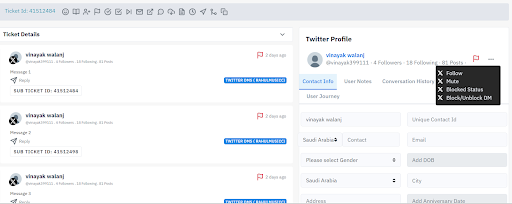
The DM Block User feature allows users to block accounts directly from the Direct Messages (DM) section, providing better control over unwanted or inappropriate interactions.
This update simplifies moderation by enabling quick blocking without needing to leave the Konnect Insights interface. It helps maintain a safer, more focused communication environment for your brand.
Navigation: Go to tickets > Open one ticket view of a particular ticket > On the right side we can see the Twitter user profile > Click on three dots > From there block the user
2. Agent Availability Control for Admins
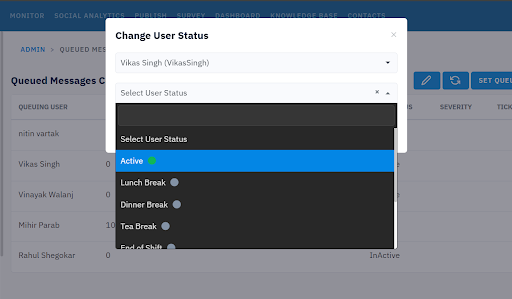
The Agent Availability Control for Admin feature gives admins greater oversight of agent performance and queue management. With this update, admins can now pause the queue for an agent if they miss assigned tickets or fail to respond within the expected timeframe.
This helps maintain accountability, ensures smoother workload distribution, and allows managers to take timely action to keep response operations efficient and consistent.
Navigation: Go to Setting and admin > Navigate to Queue Message Configuration > Click on the pencil icon to change the status of users
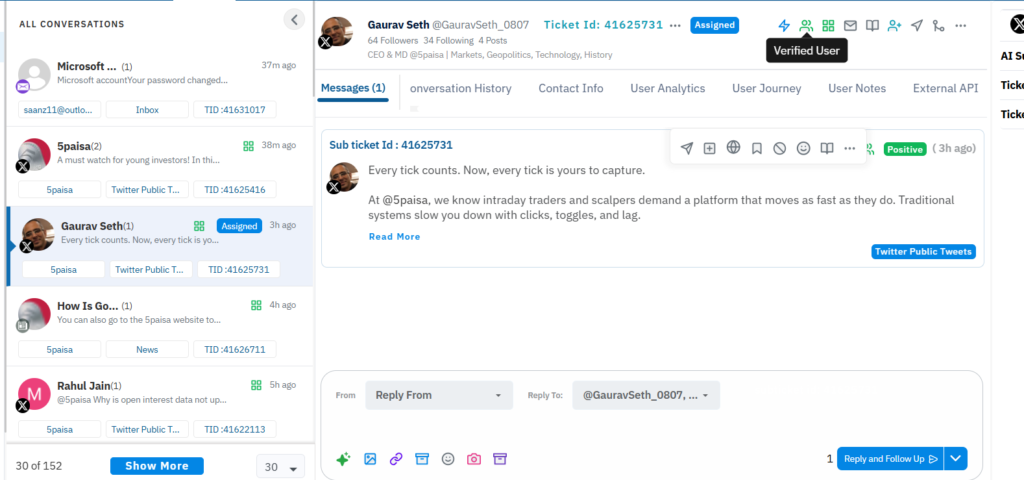
3. Viewing assigned agent in conversation view
The ability to view that a ticket is assigned to an agent in the Conversation View provides greater visibility and context while managing tickets. With this enhancement, users can easily identify which agent a particular ticket has been assigned to directly within the conversation window. This helps improve collaboration, accountability, and tracking by ensuring everyone on the team knows who is handling each interaction in real time.
Navigation: Go to conversation view > Search a particular ticket > On the top of the ticket you can see the Assigned label which refers to the ticket being assigned to an agent
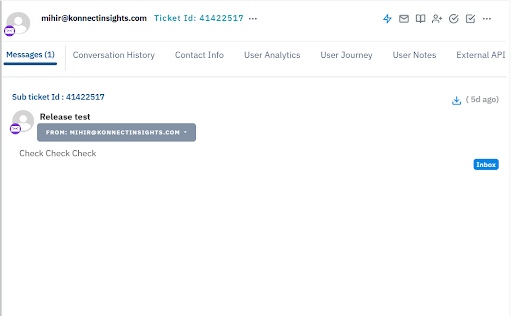
4. Viewing Email Subject in Conversation View
The View Ticket Subject in Conversation View enhances visibility by displaying the complete ticket subject directly within the conversation window. This update allows users to quickly understand the context of a ticket without navigating away or opening additional details. By making the full subject line easily accessible, it improves workflow efficiency, helps agents stay informed while responding, and ensures smoother handling of customer interactions.
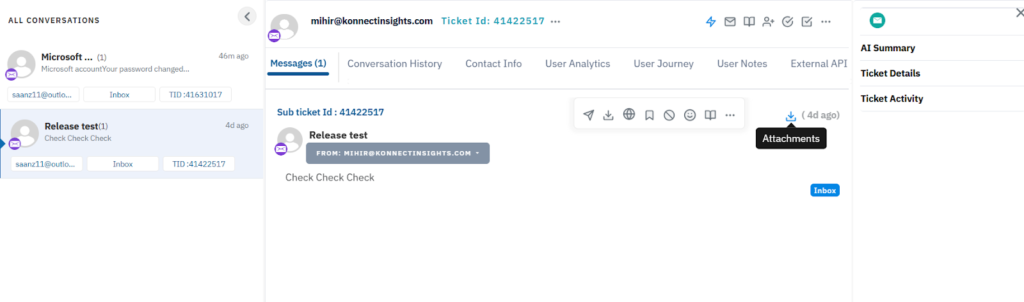
5. Attachment Icon Added in conversation view if attachment is available in Email
Under the Conversation View, an attachment icon has now been added to indicate when emails contain attached files.
This small but valuable enhancement allows users to quickly identify conversations with attachments without opening each email individually, improving navigation, saving time, and ensuring important files are not overlooked during ticket handling.
6. SLA Violation time for FRT, ERT,and RT reduced
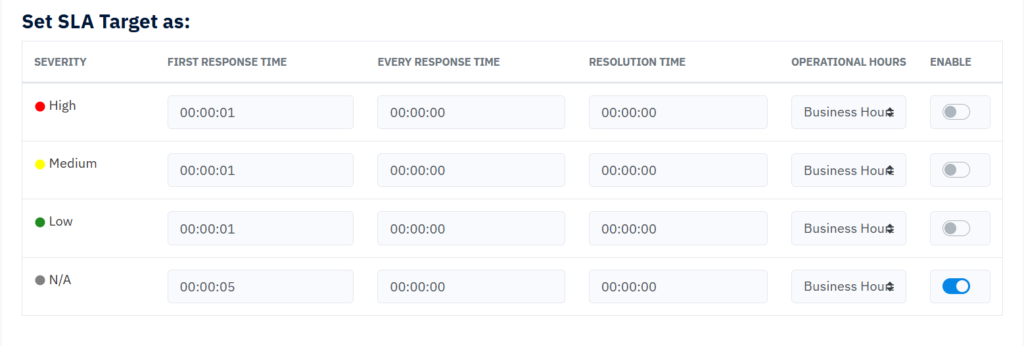
The SLA Violation Time for FRT (First Response Time), ERT (Every Response Time), and RT (Resolve Time) has been optimized from 5 minutes to 1 minute for faster detection and escalation. This enhancement ensures that SLA breaches are identified and flagged more promptly, allowing teams to take immediate corrective actions.
By tightening the monitoring window, organizations can maintain higher service standards and respond to time-sensitive issues with greater efficiency.
Navigation: Click on settings and admin > Navigate to SLA > Enter the SLA breach minutes as required
7. Normal date visible in ticket
The Normal Date Visible in Tickets feature provides users with clearer time references by displaying the exact date and time of a ticket instead of relative timestamps like “2 hours ago.” This enhancement offers greater precision and transparency, helping teams easily track when a ticket was created or updated. It improves clarity in ticket management, supports better time-based analysis, and ensures smoother coordination across team workflows.
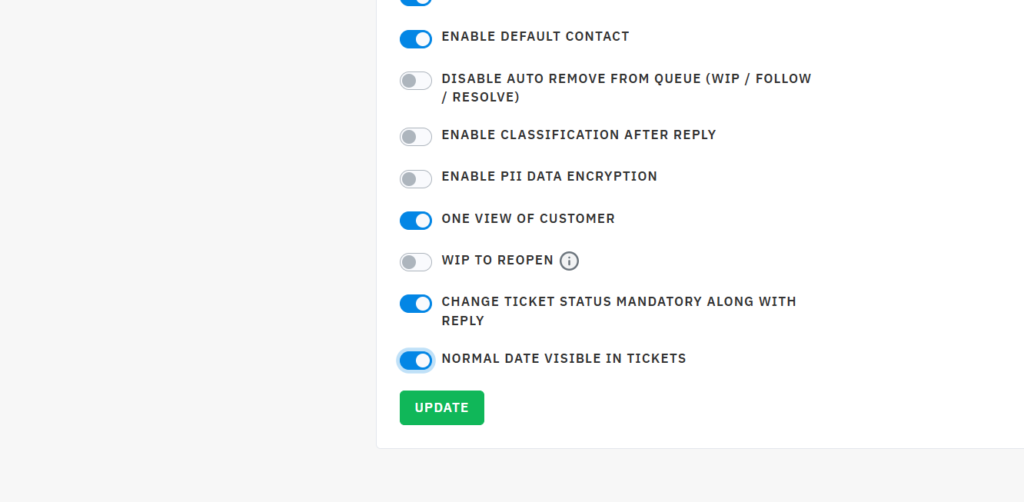
Navigation: Click on settings and admins > Scroll to ticket settings > Scroll to the last setting “Normal Date Visible” > Turn on the toggle > update and logout login again
8. Mandatory Reply or comment with ticket status
The Mandatory Reply or Comment with Ticket Status feature enhances accountability and workflow accuracy by removing the “Reply Only” option. With this update, agents are now required to take a defined action by updating the ticket status to Work in Progress (WIP), Resolve, Follow-up, or Closed whenever they respond. This ensures every interaction is accompanied by a clear status update, improving ticket tracking, maintaining consistency across the support process, and ensuring that no conversation goes unaccounted for.
Navigation: Click on settings and admins > Scroll to ticket settings > Scroll to the second last setting “Change ticket status mandatory with reply” > Turn on the toggle > update
9. Google Analytics : Active Users by Demographics
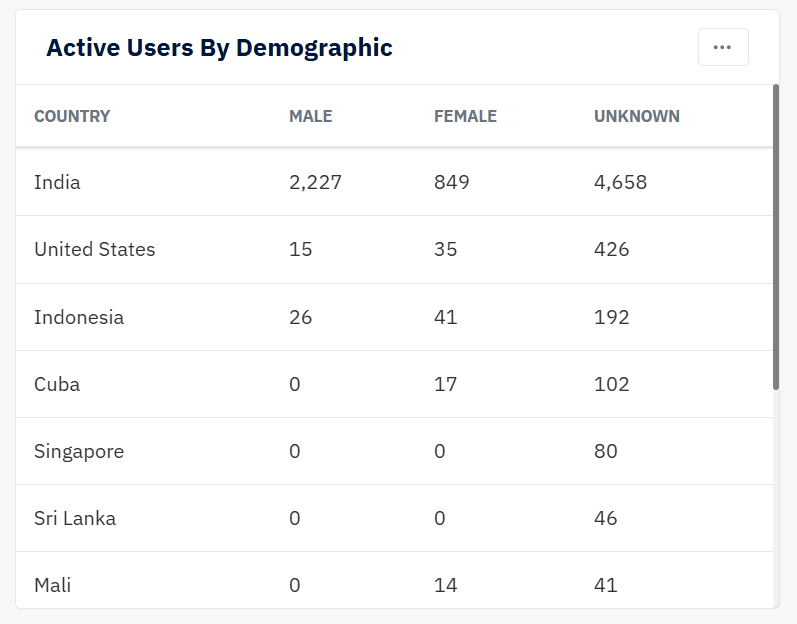
The Active Users by Demographics chart has been added to Google Analytics under the Social Analytics module, offering a deeper understanding of your audience composition. This chart breaks down active users by key demographic factors such as age and gender, enabling brands to see which audience segments are most engaged with their content.
By leveraging these insights, teams can fine-tune their messaging, design more relevant campaigns, and optimize targeting strategies for better audience resonance. This addition enhances visibility into who is interacting with your brand and supports more data-driven marketing decisions.
Navigation: Click on Social Analytics > Select Google Analytics profile > Scroll down to Active Users by Demographic Chart
10. Google Analytics : Active Users by Top Channel
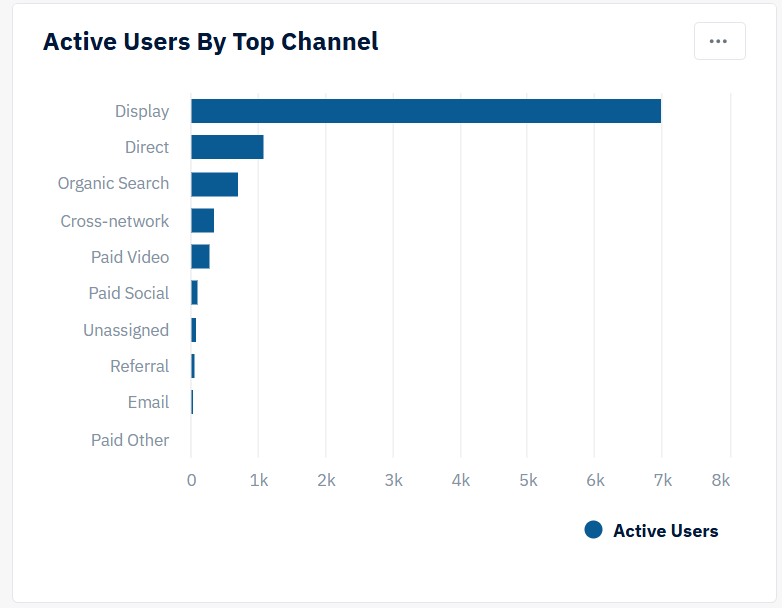
The Active Users by Top Channel chart has been added to Google Analytics under the Social Analytics module, providing a clear view of where your audience engagement is coming from. This chart highlights the top traffic channels—such as organic search, direct, social, referral, and paid—showing which sources drive the most active users to your platform.
By leveraging these insights, brands can identify their strongest performance channels, allocate resources more effectively, and refine their marketing strategies to boost visibility and engagement. This enhancement helps teams make data-driven decisions and strengthen their overall digital presence across key acquisition channels.
Navigation: Click on Social Analytics > Select Google Analytics profile > Scroll down to Active Users by Top Channel Chart
11. Thread : Engagement Calculation now Available
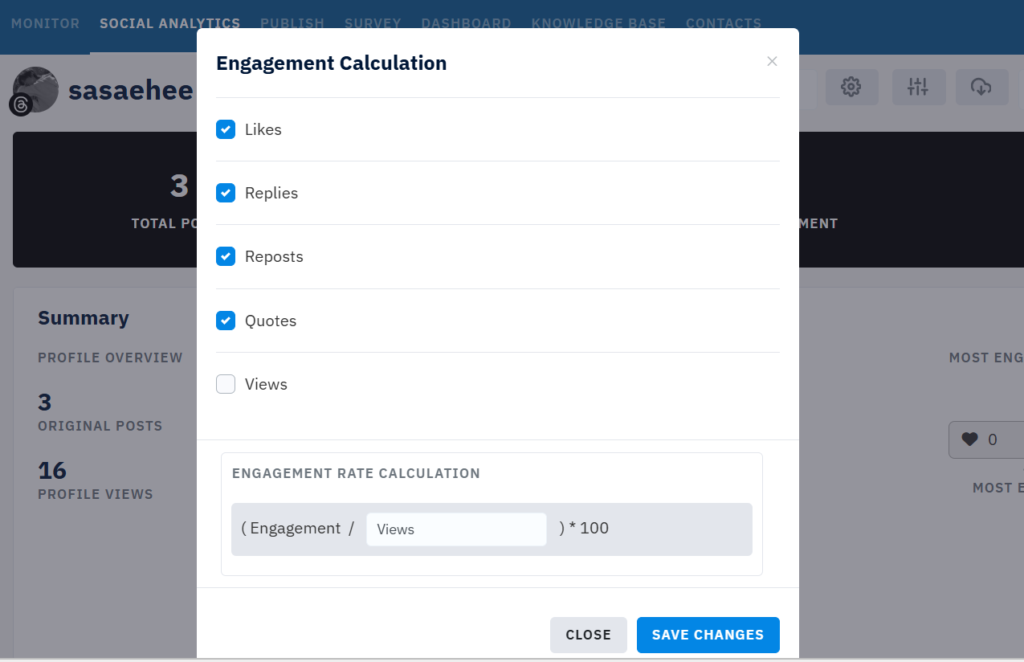
An Engagement Calculation feature has been added for Threads within the Social Analytics module, providing a clearer picture of how audiences interact with your content. This enhancement measures key engagement metrics such as likes, replies, and reposts, helping brands evaluate the effectiveness of their posts on the Threads platform.
By tracking engagement levels over time, teams can identify which content types perform best, understand audience preferences, and refine their posting strategies accordingly. This addition empowers marketers with actionable insights to drive stronger engagement and optimize performance on Threads.
Navigation:Click on Social Analytics > Select Threads profile > Click on the gear icon on the top to calculate Engagement